Showing posts with label Computer Tricks. Show all posts

Friday, June 27, 2014

How To Open Youtube Without Proxy Or Software In Pakistan

unblock youtube,open youtube,proxy software.vpn connection.upload videos youtube,google adsense,zenmate extension,blogger ustaad,
AoA! Friends today I am gonna tell you how you can browse Youtube easily without using any proxy,software like Hotspot Shield or Unblocking website while living in Pakistan.These are the latest methods in 2014 and are easy to use.There are actually 3 methods for opening Youtube in Pakistan.Now let me discuss all these methods in detail.

Method 1 (Establishing A VPN Connection):

In this method we will easily create a VPN connection in our computer and then browse youtube without any restrictions.After creating it we will just have to click on ''Connect'' button and it will be connected in seconds and you will be able to browse youtube using identity of USA or UK.Now let's see how to create it? Just follow the steps below:
  • Go to Control Panel < Network & Internet < Network And Sharing Center
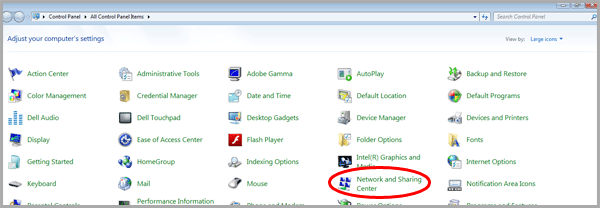
  • After opening Network And Sharing Center click on ''Set Up A New Connection or Network'' as shown below
  • Now click on ''Connect To A Work Place' at 4th number in the list

  • Now choose the very 1st option ''Use my Internet Connection VPN''
  • Now input the values of Intenet address and Destination Name given below in the boxes


USA Best VPN

VPN Server  : us.mybestvpn.com
VPN Username: mybestvpn
VPN Password: freevpn
VPN Protocol: PPTP VPN

UK Best VPN

VPN Server  : uk.mybestvpn.com
VPN Username: mybestvpn
VPN Password: freevpn
VPN Protocol: PPTP VPN
Tip: If you want to use USA VPN then paste us.mybestvpn.com in Internet address field and in Destination name put ''My VPN Connection'' and then proceed to 'Next'
  • In the next step you just need to put the username and password given above in the boxes to connect to your newly created VPN connection give ''mybestvpn'' as Username and ''freevpn'' as password.

  • Now after connecting to VPN connection remember that before opening ant website after connecting to VPN it will show an agreement page.Click on ''I Agree'' and your VPN will be active

  • Now after clicking on ''I Agree'' open Youtube.com and enjoy surfing it normally without Ads and any other Problems.

Method 2 (Using ZenMate Google Chrome Extension):

In this method we will install ZenMate extension which is only for Google Chrome if you dont have Google Chrome download and install it.Now let me tell you how to install and use it.
  • After adding extension in your browser enter your email address and click on ''Get Secured'' 
Congratulations! You have successfully unblocked Youtube and surf safely.If you are having any question feel free to ask.I will love answering them.Take care & Allah Hafiz!

    Thursday, May 8, 2014

    How To Format Write Protected Memory Cards And USB Drives (Urdu/Hindi)


    Format Write Protected Memory Cards And USB Drives (Urdu/Hindi)

    A.o.A! Today in this video tutorial we will learn how we can format write protected memory cards and USB flash drives.Formatting write protected data without any software is really a headache.I myself also used to face this problem and one day I got solution of it which I am gonna tell you in this video tutorial and written article.Some memory cards and USB flash drives have write protected privacy and they cannot be formatted if you dont remove password from them.Sometimes they get write protected automatically due to viruses and are very difficult to format.Whatever the reason,but you shouldn't loose hope because I have come up with a solution which works perfectly and you can again start using your favorite USB by formatting it without any problem.In case of memory cards the most annoying error is ''Memory card not formatted,Format?'' I really hate it and I am fed up of it.This is the most common error in a memory card.People try many antiviruses to remove this error and think that this is a virus.Yes it's true that it occurs due to virus and the virus only write protects your card.It does not harm your data at all.So now let's start the tutorial and let me tell you how to fix these bugs:

    How To Format Write Protected Devices?

    To format write protected devices you need to download a software called 'mUsbFixer' You can download this software for free by clicking on the download button below.The best thing of this software is that it has the ability to format all USB drives and memory cards without any risks.You dont need any registration key or need to crack this software.It's totally free! Now download it from here (Size: 1Mb Only)

                                  Download Now

    Now after downloading software follow these instructions or watch video tutorial in Urdu & Hindi below instructions:
    1. Plug in your drive and open software.
    2. Open software and select USB drive to fix.
    3. Click on ''Recover shortcut folders' to fix the drive (If the drive is not fixed format it)
    4. Now again select USB drive and click on ''Format write protected drive'
    5. Now plug out your device and plug in to see the problem is fixed.
    6. If the problem is not fixed try doing this process again 
    I used this software and I formatted my 2 flash drives and 1 memory card with help of it.I didn't find any problem.If you dont understand the step by step guide then please watch the video tutorial below:

    Video Tutorial About Formatting Write Protected Drives:


    Your Turn:

    I tried my best to explain you each and everything about this video tutorial and I hope that you would have liked it.Please share this video tutorial to support us and keep on viewing our website for more video tutorials and dont forget to subscribe to newsletter and like our FaceBook Page If you are having any problem related to anything then please feel free to ask us! We will try to solve it.Remember me in your prayers..!!


    Wednesday, May 7, 2014

    How To Write Protect USB Drives And Memory Cards With Password (Urdu/Hindi)

    A.o.A! Today in this tutorial I will tell you how you can write protect your USB Flash Drives,Hard Drives And Memory Cards using Passwords.Nowadays computer has become use of everyone.Data is the most important thing in a computer and when your USB drive or Hard drive get's into your children hand's then you may loose your important data.Data may get formatted or jumbled in folders.Many users face this problem and are tired of it.Today I will guide you how you can get rid of this headache.Write protection is the most important and only method to protect your data from getting deleted or being copied.If you use write protection method for protecting your data then anybody will not be able to harm your drive especially viruses.Viruses are harmful and you should be aware of them.Mostly viruses cannot be deleted and destroy your computer property.But if you use write protection method then you can also prevent from viruses without using any antivirus software.So let's start the discussion:

    Why You Should Write Protect USB Drives?

    • To protect your data from being deleted,moved or replaced by children etc.
    • To protect your drives with viruses.
    • To stop thieves from stealing your data.
    • To prevent from errors which appear on device start-up.

    How To Write Protect Memory Cards And Drives?

    To write protect your memory cards and flash drives you need to download a software by clicking on the download button below: (Dont worry it's only of 500Kb)

                                             Download Now

    Now after downloading write protecting software follow the instructions:
    1. Extract files (which are in software) to a hard drive or memory card which you want to be write protected.
    2. Now open file ''Urcam'' and accept the software agreements.
    3. Now click on ''Password'' button located at the left below side of software.
    4. Now enter your desired password and click on save.
    5. Now set your USB Drive to 'Read Only' from software.
    6. Now click on save button and plug out your drive and then plug in
    7. Enjoy! Your drive has been write protected successfully!
    Thinking how to remove write protection of it? It's simple just go to your memory card/USB flash drive and open the URCAM file and remove the write protection by following some simple steps.If you are facing any problem please watch the video tutorial below to get your problems solved!

      Video Tutorial Explanation (Urdu/Hindi):

      Your Turn:

      I tried my best to explain you each and everything about write protecting your important drives.I hope that you would have liked the video tutorial.Please share this tutorial to support us and comment if you are having any problem related to anything.We will try or best to help you.Remember us in your prayers!